Free Perler Bead Pattern Maker: Turn Photo to Bead Art
Updated September 2026 · ~12 min
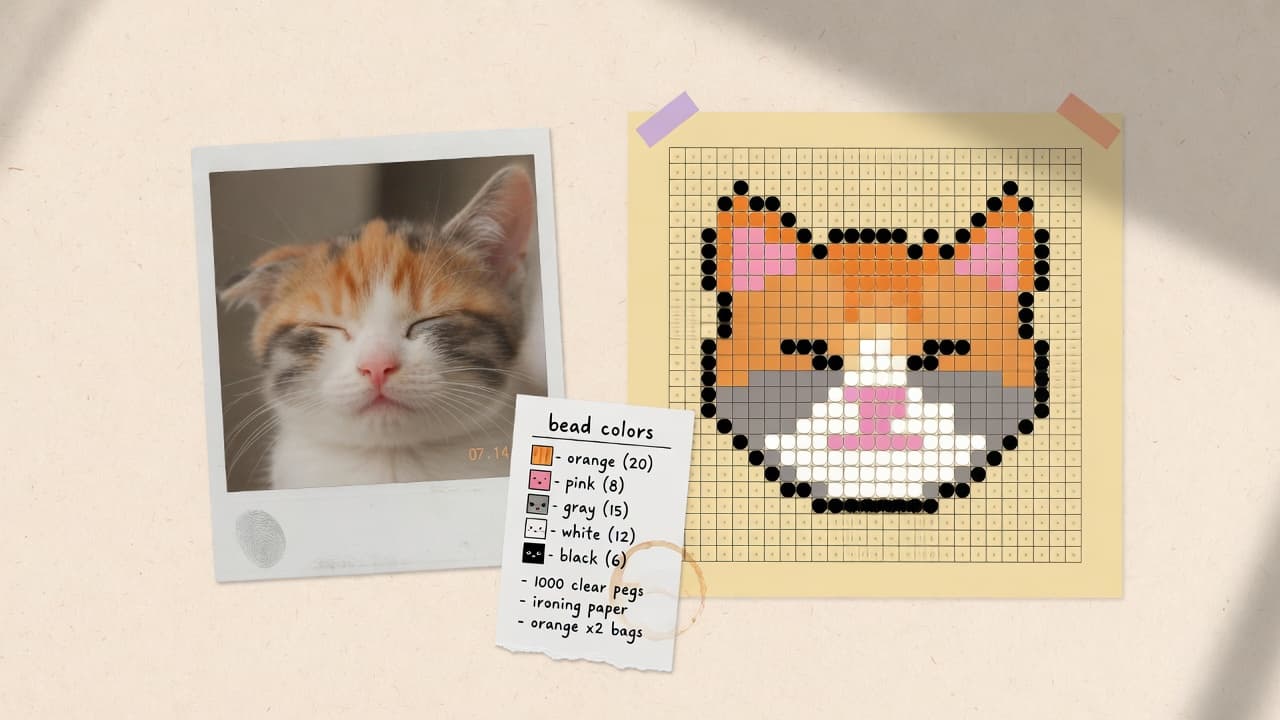
Quick Summary
A free Perler bead pattern maker turns a photo into a pegboard-sized chart with brand color codes and a shopping list. If you want to go from image to Perler beads without installing software or creating an account, a browser-based maker is usually enough for hobby boards. This guide explains what those tools do, how to choose one, and a short workflow you can run today.
Why This Matters
Drawing every cell by hand is slow. Desktop editors help, but many people only need a free online bead pattern maker for a weekend project: crop a photo, map it to a limited palette, and print a chart. Search also mixes names—pattern generator, converter, creator—that point at the same job: image to Perler beads without guessing colors from a blurry phone screen.
Privacy matters more than it used to. Family photos and pet portraits are common inputs. Tools that process the image on your device avoid sending the file to a remote convert API. That does not make every site risk-free (page hosts still see normal web traffic), but it removes photo upload as a requirement for conversion.
Key Takeaways
- A free Perler bead pattern maker maps photos to a grid, brand codes, and bead counts—not a finished plastic board.
- “Generator,” “converter,” and “creator” usually share one intent: photo → chart.
- Prefer tools that state whether processing is local, which brands they support, and what you can export.
- Cap colors near what you own; screen RGB is a plan, not a color warranty.
- Long-edge sizes around 29 / 50 / 58 / 87 beads trade detail against time and bead count.
- For a full photo walkthrough with a real case study, use a dedicated how-to after you try the editor.
What a free Perler bead pattern maker actually does
The useful output is a build plan. The tool resizes your image to a bead grid, matches each cell to a palette entry (Perler-style codes, Hama, Artkal, MARD, and similar charts where supported), then lets you export a PNG and a material list. A perler bead pattern generator and a perler bead converter are marketing labels for that pipeline more often than they are different product categories.
You still place beads by hand. The maker does not iron the board, fix lighting, or guarantee that tray codes match the pixel on your monitor. Treat codes as planning labels: check them against plastic under real light before you buy bulk packs.
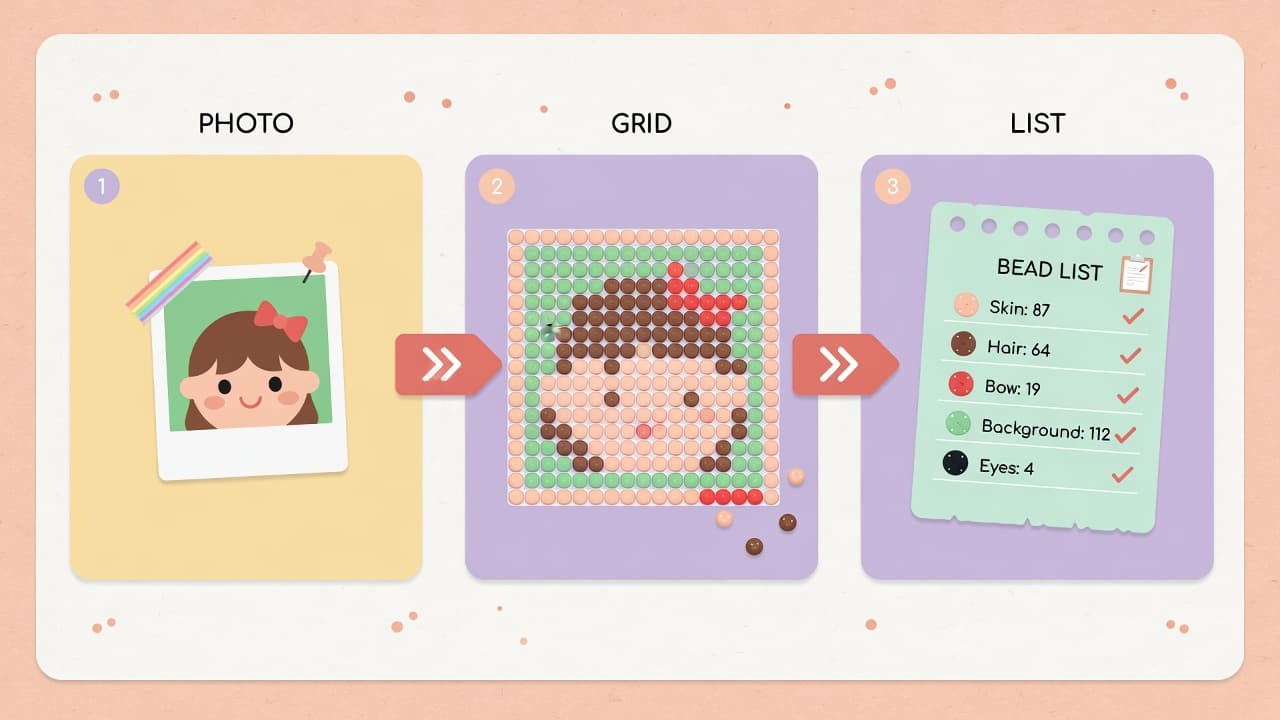
Pattern maker, creator, generator, or template maker?
A Perler bead pattern creator, bead pattern generator, and Perler template maker usually describe the same workflow: image in, bead-sized grid out. Some tools stop at a visual preview; the useful ones also export a printable chart and totals for each color.
Search terms differ, but your checklist should not: board-size control, a palette that matches the brand you own, a realistic color cap, readable export, and a clear statement about photo processing.
Who should use an online maker (and who should not)
Good fit: clear subjects (pets, logos, cartoon faces), flat or easy backgrounds, and a goal of printable chart plus counts before shopping. Teachers and workshop hosts who need a fast demo also benefit.
Weak fit: print-shop color certification, commercial brand licensing questions, or projects where every bead must match a strict color target. Those need physical sampling, not a free converter alone.
If you already own one brand of beads, pick that palette first so the shopping list speaks the codes on your boxes.
How to choose a free online bead pattern maker
Compare tools on criteria you can verify in the UI or privacy page—not on vague claims.
| Criterion | What to look for |
|---|---|
| Privacy | Local processing vs required upload |
| Palettes | Brands and whether codes are labeled |
| Control | Crop, max colors, background clear, paint/fill |
| Export | PNG chart, list with counts, optional guides |
| Account | Free export without signup |
| Honesty | Color accuracy disclaimer |
Bead Pixel Art is a free browser editor aimed at that list: local photo mapping, multiple brand palettes, crop and background tools, and PNG plus material list export without an account. It is not affiliated with Perler or other brands unless stated otherwise. Palette RGB values are planning approximations—double-check physical beads before large purchases. For brand product context see the Perler official site and general craft safety guidance from reputable hobby retailers before ironing with children.
Quick start: image to Perler beads in the browser
- Open the free editor.
- Drop a clear photo (within the tool’s size limit).
- Set the long edge in beads (start near 50–58 for characters; try 29 for a one-board test).
- Choose a brand palette and a max-color cap close to what you own.
- Crop wasted margin so the subject fills the board.
- Use background pick to clear empty fields when the backdrop is flat.
- Fix eyes or outlines with paint/fill if needed, then export PNG and the list.
For a longer illustrated run, see How to turn a photo into a Perler bead pattern.
Color matching: how many bead colors you need
Color matching is the step people under-estimate. Unlimited colors look smooth on screen and brutal on a pegboard. Cap the palette, then re-map. Cartoon-style modes keep large flats; detail modes average cells and often look better on photos—but both still need a realistic max-color limit.
Ask which colors already sit in your trays. Prefer mapping into those codes. After export, sort the shopping list by count; whites and light greys show up often on faces and backgrounds. On-screen matching will disagree with desk lamps and mixed brands. Budget a small surplus of high-count colors instead of treating the chart as a purchase order you must hit exactly.
Perler bead grid sizes and pattern realism
Long-edge presets around 29, 50, 58, and 87 beads set how much detail you can keep. Short edge usually follows the photo aspect ratio. Bigger boards need more time and more beads; smaller boards hide fine whiskers and text.
If the subject is tiny in the frame, crop before you raise the size. A tight crop at 50 often beats a loose crop at 87. For more on pixel beads as a craft, see Pixel beads on a pegboard.
Online maker vs hand drawing vs paid software
A free Perler bead pattern maker wins when you value speed, no install, and a shopping list. Hand drawing wins for strict pixel control. Paid tools win when you already live in that app’s ecosystem. None is universally best—pick by scenario.
Common mistakes
- Busy photos without crop or background clear.
- Uncapped max colors—lists explode and boards look noisy.
- Trusting monitor color for bulk buys without checking trays.
- Starting at the largest grid, then abandoning halfway.
- Expecting the tool to invent rights you do not have for commercial logos or people photos.
FAQ
Is there a free Perler bead pattern maker that does not upload my photo?
Some browser tools map the image on your device. Bead Pixel Art is built that way for conversion. Always read the privacy page: hosting may still log ordinary page requests.
What is the difference between a pattern generator and a converter?
In search results, almost nothing. Both usually mean photo → grid + codes. Judge the actual controls and export, not the product noun.
Can I turn any image into Perler beads for free?
You can convert most common image files within tool limits, but not every photo becomes a pleasant board. Free export does not remove copyright issues.
How do I figure out what color beads I need?
Export the material list, sort by count, match high-volume codes to trays you own, and only buy gaps. Cap colors before export when you want a shorter list.
Why do codes look wrong under my lamp?
Screens, brands, and lighting disagree. Treat the chart as a plan; verify plastic in real light. The tool is not a manufacturer warranty.
Conclusion
A free Perler bead pattern maker is a planning layer between a photo and a pegboard: grid, codes, and counts. Pick a tool for privacy, palette support, and honest limits; run a short convert–crop–cap-colors loop; then build with spare beads on the colors you use most.